
Search results for playing mobile games on a PC mostly point at an emulator: a second Android that runs on the computer, where you install the game again and sign in again. There is another path. The game stays on the Android phone you already use, the picture shows up on a Windows monitor, and you play with a keyboard and mouse. That is what playing Android games on PC without an emulator means.
MirrorPlayer is a Windows app for that path. This guide compares the two setups, then walks from a USB connection to pressing ~. It does not reinstall anything inside a virtual phone.
What an emulator actually does
An emulator is another Android running on the PC. The game is installed a second time. The account is signed in again. The computer’s processor and graphics card carry the game. Names you will see on those results include BlueStacks, LDPlayer, and MuMu. For PUBG Mobile, the official PC route is GameLoop.
An emulator is the better fit when:
- You do not have an Android phone to spare
- You want the game to keep running while the phone is free for calls
- The publisher tells you to use one specific emulator
This page does not walk through installing those apps.
What “without an emulator” means
The game process stays on the phone. The PC shows the mirrored screen, and key presses become touches on that screen. Progress, the login, and the game’s own checks stay on that device. The usual path does not need root, and it does not ask you to install a companion APK just to mirror.
Feel follows the phone, not the PC graphics card. A modest computer can still show the picture, because the phone is doing the game work. The phone has to stay connected. It will warm up and use battery. MirrorPlayer can go up to 2K / 120 fps, and the product cites latency as low as about 35 ms. Those are product figures, not a claim that mirroring beats every emulator. For shooters, USB is the steadier link. See USB vs Wi-Fi.
Titles that already have an official PC client are a different search. “Genshin on PC” or “Honor of Kings on PC” usually means that client, not a mirror of the phone.
Emulator and phone mirroring
| Android emulator | Phone mirroring with MirrorPlayer | |
|---|---|---|
| Where the game runs | A virtual Android on the PC | Your Android phone |
| Phone required | You can do without one | A phone that is running the game |
| Account | Usually a fresh sign-in on the PC | The account already on the phone |
| PC hardware | The game load sits on the computer | The PC mostly displays and decodes |
| Keyboard and mouse | Each emulator has its own mapper | Drag controls on the picture, Ctrl+K to edit, ~ to toggle |
| Several copies at once | Many emulators advertise multi-instance | Not promised here. One license is for one PC |
If you have no phone, or the publisher names an emulator, use the emulator. If the game is already on the phone and you want a larger screen plus a keyboard, mirror it.
Play from the phone on Windows
Turn on Developer options and USB debugging. On Xiaomi and Redmi, also turn on USB debugging (Security settings). Brand notes are in the device connection guide.
Use a data cable. When the phone appears in MirrorPlayer, start mirroring. On the first connection, tap trust on the phone. The longer mirror steps are in How to mirror Android to PC.
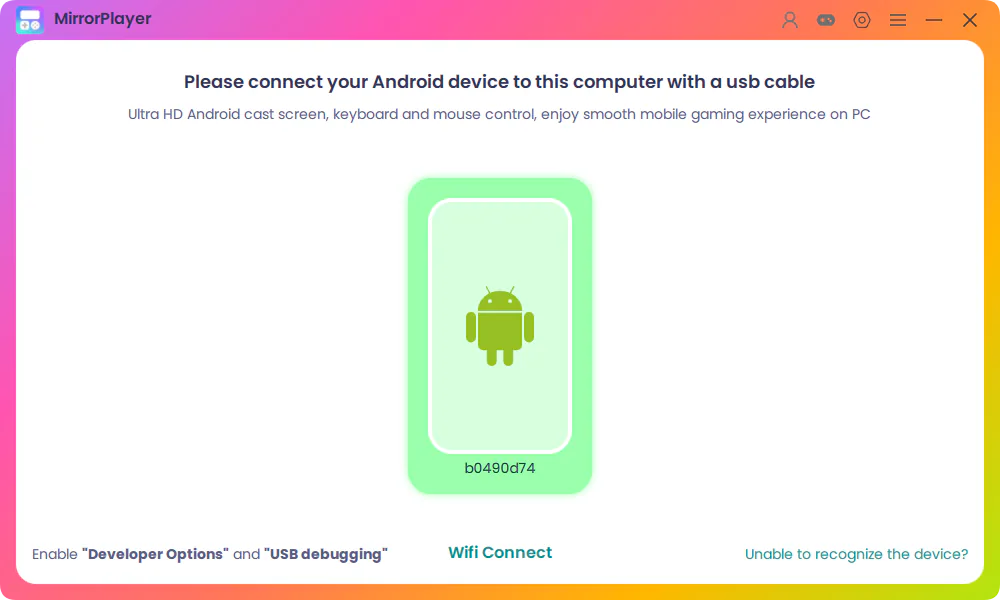
Open the game that is already installed and enter the training ground or the lobby. Leave ranked play until the controls feel right.
Press
Ctrl+K. You can start from PUBG M Example, 和平精英_官方示例 (Game for Peace), 三角洲_官方示例 (Delta Force), or 使命召唤_官方示例 (Call of Duty: Mobile). If a marker misses the button, drag it. The names may show in Chinese. The PUBG Mobile note is PUBG Mobile keyboard and mouse. The Game for Peace note is Game for Peace key mapping.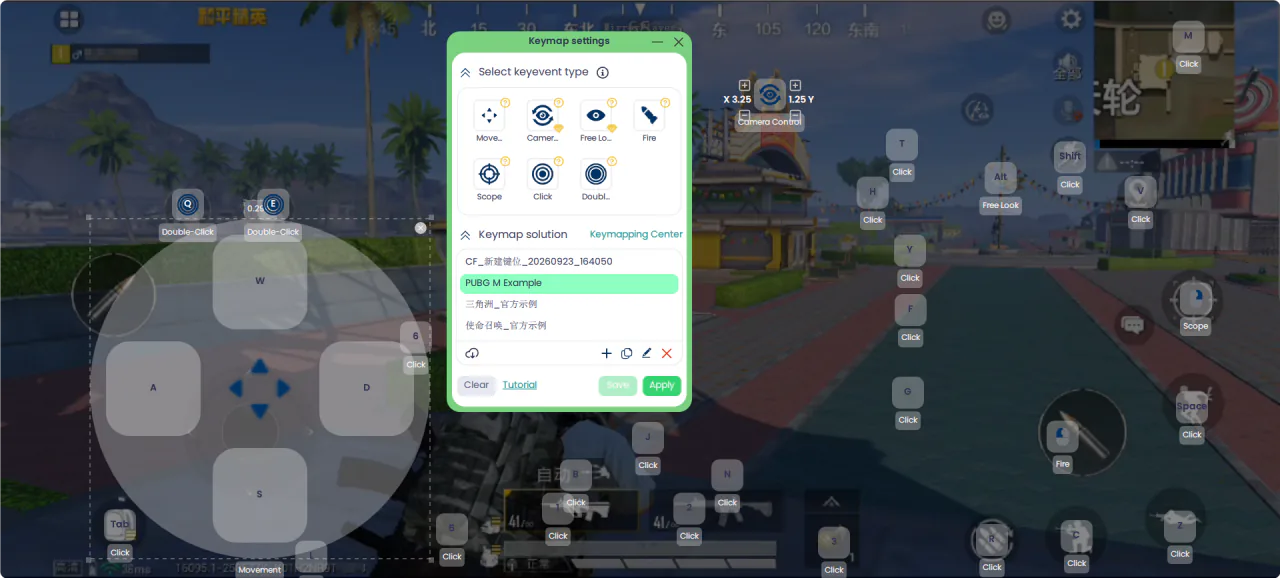
Save, Apply, and press
~. Stay on USB for shooters.
What each control type does is covered in Scrcpy alternative with visual key mapping and the key mapping guide. A shooter layout and sensitivity notes are in FPS key mapping setup. The Delta Force page is Delta Force mobile keyboard and mouse. The Arena Breakout page is Arena Breakout keyboard and mouse. The Call of Duty: Mobile page is Call of Duty: Mobile key mapping.
Publisher rules
MirrorPlayer does not edit game files and does not aim for you. Whether a title allows a keyboard and mouse on a handheld is the publisher’s rule. PUBG Mobile has said that keyboard and mouse use on handheld devices is not allowed and can lead to a ban, and it points players who want that control scheme to GameLoop. Build the layout in training. This page explains the two setups. It does not say anything about detection.
FAQ
Is this an emulator?
No. The game keeps running on your phone. The PC shows the screen and sends keyboard and mouse input as touches.
Do I install the game on the PC?
No. You play the copy that is already on the phone.
Can I do this without a phone?
No. This path needs an Android phone that is running the game.
How do I choose between this and BlueStacks?
Use an emulator when you have no phone, or you want several copies of a game on one computer. Mirror the phone when the account is already there and you want a larger display. One MirrorPlayer license covers one PC.
Does it need root or an APK on the phone?
The usual path is Developer options and USB debugging. It does not require root, and mirroring does not ask you to install a companion APK.
Does it run on Mac?
This setup is for Windows.
Which path to open
Use an emulator when the phone is not part of the setup, or the publisher has named one. When the game is already installed on an Android phone, install MirrorPlayer, mirror the screen, and try the keys in training before you queue. The short version of this job is the play mobile games on PC page.