
Keyboard and mouse for Delta Force, as the publisher describes it, means the official Windows client. This page is the other case: Delta Force mobile keyboard and mouse on a phone you already own. The Android app stays on the phone, the picture is mirrored to Windows, and you line the touch buttons up with keys. MirrorPlayer does not edit game files and does not aim for you. Frame rate and bitrate are in 120 FPS low-latency settings.
What the publisher has published
Tencent’s Delta Force notice lists an external keyboard and mouse on the mobile client as prohibited, together with ADB-style debug environments and mobile emulators. On the PC client, remote-control and streaming tools are listed as not recommended. Garena’s notice also prohibits an external keyboard and mouse on the phone, and its support pages describe account freezes tied to that use. Mouse macros and auto-clickers sit under a separate rule. Public penalty notes for macros go as far as a long ban.
The wording differs by region. Read the notice in the client you play before a match. This page does not say the setup is allowed, and it does not discuss detection. Line the keys up in the training range.
Connection steps stay in the device connection guide. This article does not repeat them.
Official client, emulator, phone mirror
| Path | What it is |
|---|---|
| Official Windows client | The computer version the publisher points to for keyboard and mouse |
| Emulator | Another Android on the PC. The safety page tells players to use the Windows client rather than an emulator for an advantage |
| Phone mirror | The game and the account stay on the phone. The PC shows the screen. That is separate from the publisher allowing it |
The longer comparison is Play Android games on PC without an emulator.
Start from the Delta Force example
Connect the phone, open the game, then press Ctrl+K or the Key mapping button. In the profile list, start from 三角洲_官方示例. The name may appear in Chinese. It is a starting point for Delta Force mobile key mapping. If your HUD scale moved a button, drag the marker onto the real control.
The types in the editor are Move, Camera, Free Look, Fire (left mouse button), Scope (right mouse button), Click, and Double-click. This page does not list a default key for every marker in that profile. The labels on your screen are the source. Save, then Apply. Press ~ to turn mapping on. The desktop cursor hides while mapping is on. Press ~ again when a backpack or the map needs the pointer.
Click-by-click editing is in Scrcpy alternative with visual key mapping and the key mapping guide.
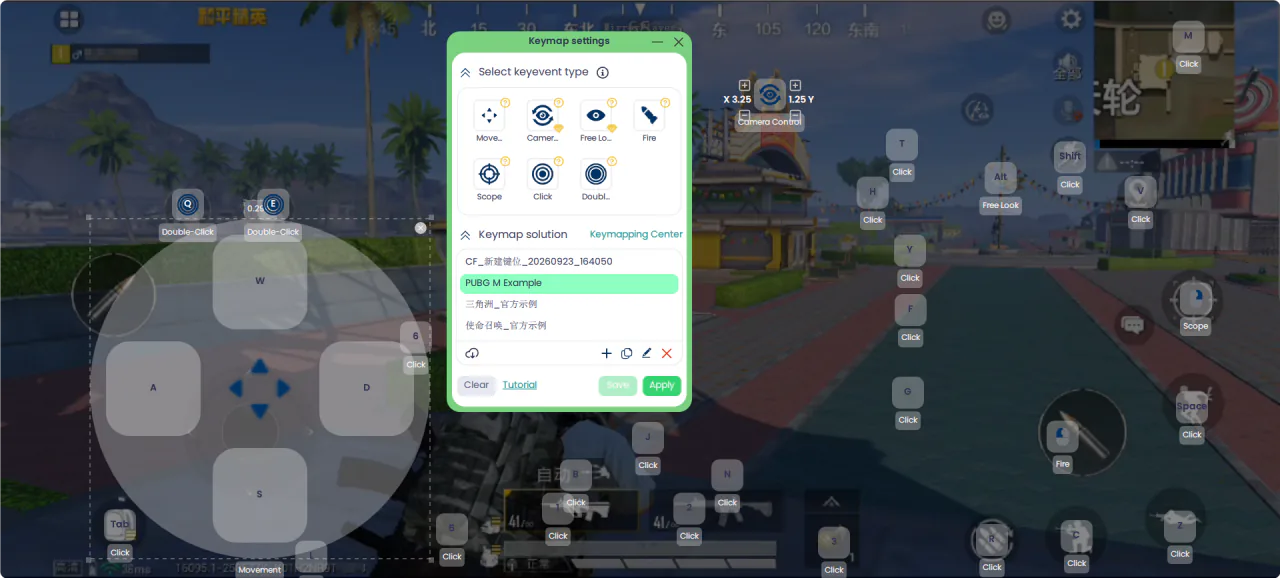
A walking layout you place yourself
Build this layout yourself. It is a suggestion for where each type goes. It is not a list of keys already stored in the example profile.
| Control | Where it goes |
|---|---|
| Move | Left stick. WASD is the usual binding |
| Camera | Look, so the body turns with the mouse |
| Fire | The fire button. Left mouse button |
| Scope | Aim down sights. Right mouse button |
| Click | Crouch, prone, jump, reload, the operator skill, interact, and weapon slots. Use a tap or a hold to match that button in the game |
| Free Look | The area where you hold a key and move the mouse while the body stays put |
Delta Force Warfare key mapping and Delta Force Operations controls can share one walking profile when the buttons sit in the same places. If a mode draws them somewhere else, copy the profile and drag again. MirrorPlayer does not switch profiles when the mode changes.
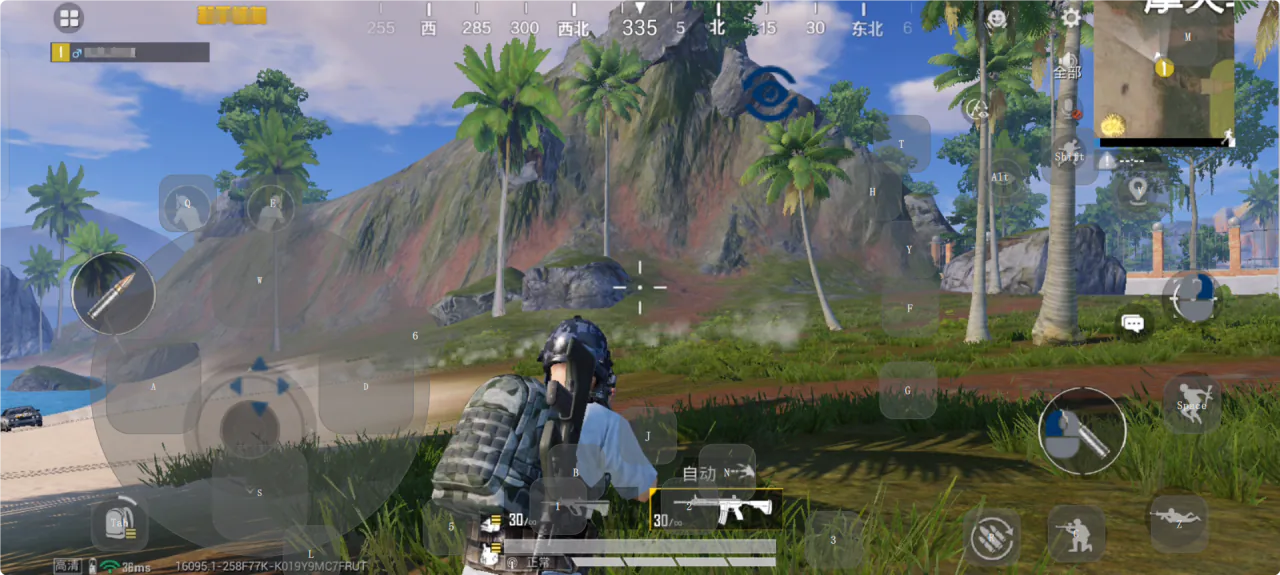
Change one sensitivity setting at a time. The order is in FPS key mapping setup.
Vehicles
Delta Force mobile vehicle controls use another stick. Save a second profile and place Move on the driving control. Wheel mapping in the product description is this stick, aligned on the live picture. Apply the vehicle profile when you take a seat, and apply the walking profile when you get out. This page has no one-key switch between walking, a ground vehicle, and a helicopter.
FAQ
Is this the official PC game?
The official Windows client is a separate game. This page is about the Android app, shown on a Windows monitor.
Will this get the account banned?
The published notices put an external keyboard and mouse on the mobile client in the prohibited list. They also describe warnings, freezes, and bans. This page does not answer that the account is safe, and it does not discuss detection. Check the current notice for your region.
The example profile misses my buttons
Drag each marker onto the button you see. HUD scale and a later game update both move them. Save after you drag.
Do Warfare and Operations need two profiles?
Use one profile when the buttons match. Copy it when a mode draws them somewhere else.
The keys are wrong after I enter a vehicle
Driving is a different stick. Apply the vehicle profile. Look sensitivity does not move that stick.
How is this different from a scrcpy keymap file?
You drag markers on the live picture. You do not edit coordinates in a text file. The comparison is in Scrcpy alternative with visual key mapping.
Where to go next
Read the notice, open 三角洲_官方示例, drag what does not line up, and try the keys in training. Latency settings are in 120 FPS low-latency settings.