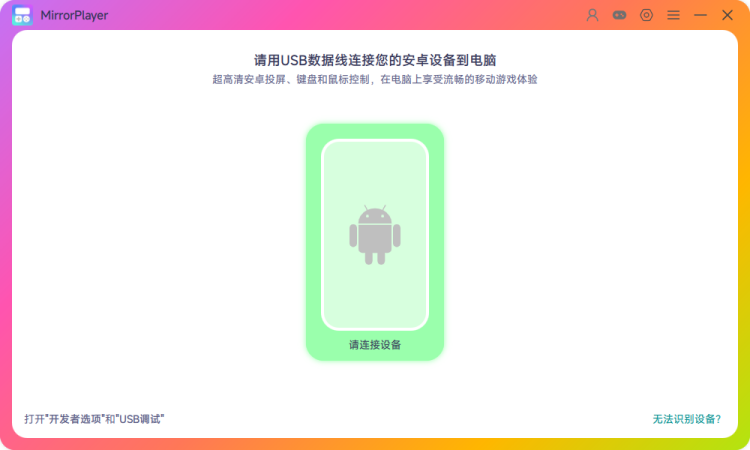
Device Connection
2.1 Enable Developer Options
2.1.1 In Settings, search for Build number, then tap it 7 times in a row.
2.1.2 After 7 taps, you will see a confirmation message.
2.1.3 In Settings, search for Developer options and turn it on.
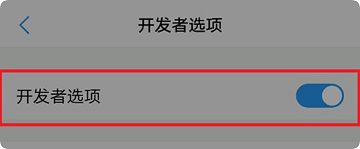
Note: On some phones the item is named Software version (e.g. VIVO), or you may need to enter a verification code (some OPPO models). On Xiaomi/Redmi it may appear as MIUI version, and you may see a warning when enabling Developer options. It is safe to proceed—our software does not collect personal data without consent.
2.2 Enable USB Debugging
2.2.1 On the same Developer options page, scroll down and enable USB debugging.
2.2.2 If available, also enable Allow ADB debugging in charge-only mode.
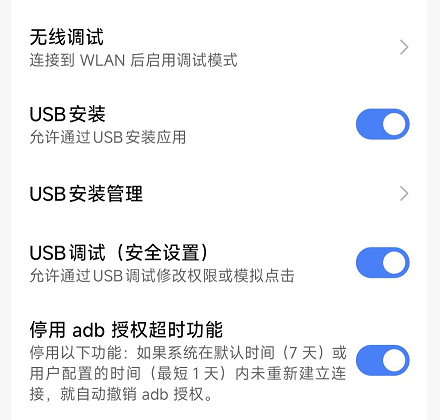
Note: On some phones (e.g. Xiaomi, Redmi), you must also enable USB debugging (Security settings) and Install via USB.
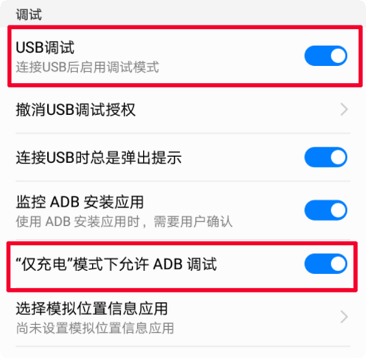
2.2.3 If you see Install via USB or USB debugging (Security settings), enable them so the PC can control the phone.
2.3 Start Mirroring
Launch MirrorPlayer and connect phone and PC with the original USB cable. On first connection, confirm Trust this computer on the phone.
When a device name or serial appears below the device area, click the Android icon in the app to connect and start mirroring.
Note: If mirroring still fails after several attempts, restart both the app and your phone and try again.