
Aim that feels late usually comes from three places: the connection, how much data is in each frame, and how the PC decodes the picture. 120 fps and about 35 ms are the ceilings MirrorPlayer cites when the phone, the cable, and the computer keep up. They are not a switch you flip. This page is the order to change low-latency Android screen mirroring for a shooter: USB first, then max frame rate, resolution, and bitrate, then hardware decode and render.
Fix the connection before the sliders
For a ranked match, use a USB cable that carries data, not a charge-only lead. Wi-Fi can work after pairing. It is the wrong place to chase a stable 120 fps feel. When to stay on Wi-Fi is covered in USB vs Wi-Fi mirroring. Confirm the cable before you touch settings.
The four controls that change latency
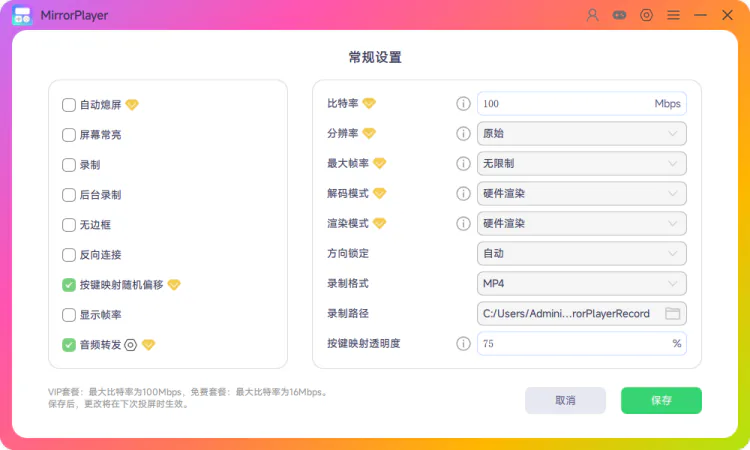
Open Menu → Settings. The rows that matter for shooters are bitrate, resolution, max frame rate, decode mode, and render mode. The screenshot below is the Chinese settings window. 最大帧率 is max frame rate, and the value shown is 无限制 (Unlimited).
| Setting | For a shooter | If aim still feels late |
|---|---|---|
| Max frame rate | Unlimited, so the phone is not capped in the app. The product ceiling is 120 fps when the phone can encode that | If the PC stutters, lower this. Do not raise resolution and bitrate at the same time |
| Resolution | Original uses the phone’s own resolution. A 2K panel can mirror at 2K | Drop resolution before you drop bitrate |
| Bitrate | Range is 1–100 Mbps. The settings guide suggests 64 Mbps or higher on a flagship. The free plan tops out at 16 Mbps. VIP tops out at 100 Mbps | Higher is clearer and heavier per frame |
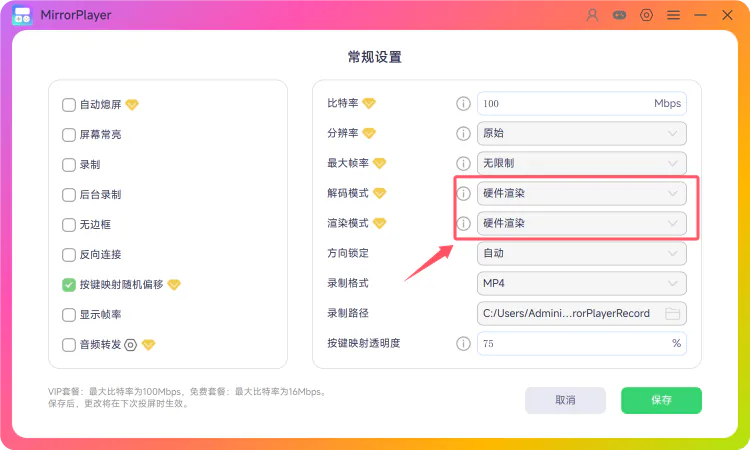
| Decode and render | Hardware decode and hardware render, the pair named in the latency FAQ | This is the lowest-latency combination documented for MirrorPlayer |
The red box in this screenshot marks those two rows. The window itself is in Chinese.
While a session is running, open Task Manager → Performance → GPU and check Video Decode. Activity there means hardware decode is in use. The click-path and the Task Manager screenshot are in the frame delay FAQ.
Save, then start a new session
These values apply on the next mirroring session after you save. If a change seems to do nothing, disconnect and start mirroring again. Do not keep tuning inside the same session.
A shooter preset to copy
- Connect with USB.
- Set max frame rate to Unlimited.
- Leave resolution on Original.
- Set bitrate to what your plan allows. On the free plan, stay at or under 16 Mbps. On VIP, a flagship can start at 64 Mbps and move toward 100 Mbps only if the picture stays smooth.
- Set decode to hardware decode and render to hardware render.
- Save, start a new session, and try a training range.
If it is still late, change only resolution or only bitrate, then start another session and compare. Do not move all four at once.
Key mapping moves buttons. It does not shrink the delay. Screen-off casting is about heat and battery. Recording is a separate feature. Layouts are in FPS key mapping setup.
FAQ
Does Unlimited mean I am at 120 fps?
No. Unlimited means MirrorPlayer is not capping the rate. You get 120 fps only when the phone can encode it. A 60 fps panel still tops out at what that phone outputs.
Is 35 ms guaranteed on Wi-Fi?
No. “As low as about 35 ms” is the product floor, not a Wi-Fi promise. Use USB for ranked shooters.
Can a free plan use 100 Mbps?
No. The settings window states a free-plan maximum of 16 Mbps. 100 Mbps is the VIP maximum.
I changed the numbers and nothing happened
Save, then end the current session and start mirroring again. Settings apply on the next session.
Is this the same idea as a low-latency scrcpy setup?
The tradeoff is the same kind: connection, bitrate, and hardware decode. The clicks are in this page. The command-line comparison is in Scrcpy alternative with visual key mapping.
Where to go next
USB, then max frame rate, resolution, and bitrate, then hardware decode and render, then a new session. The short connection page is USB and Wi-Fi mirroring. Full field notes are in the app settings guide.