
App Settings
3.1 Open Settings
Note: All settings take effect on the next mirroring session after you save.
3.1.1 Click the Menu button in the top-right corner.
3.1.2 In the menu, click Settings.
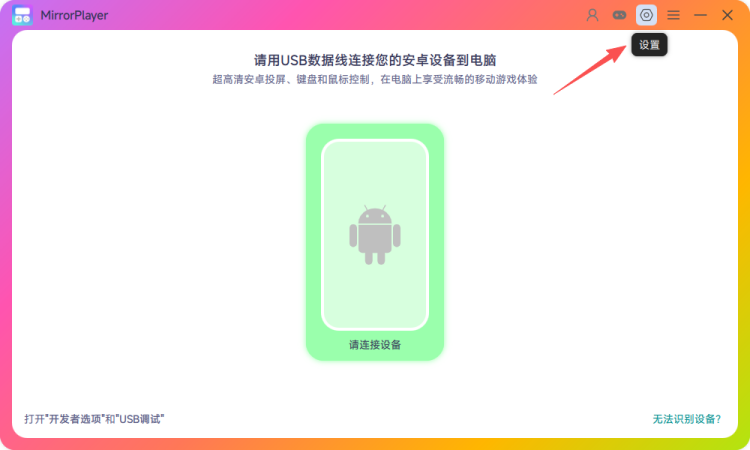
3.1.3 The Settings dialog opens.
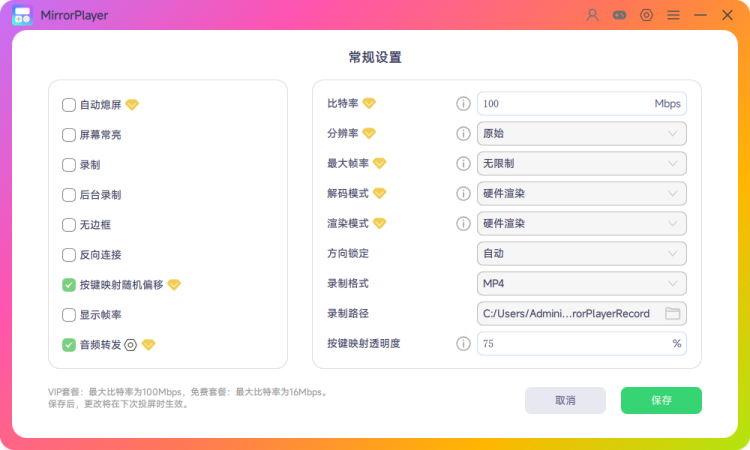
3.2 Video Quality
3.2.1 Bitrate: Higher bitrate improves quality but may increase latency. Adjust based on phone and PC performance.
Note: This sets the maximum bitrate. Range: 1–100 Mbps. Flagship phones: 64 Mbps or higher recommended.
3.2.2 Resolution: Higher resolution improves quality. Original is recommended—the mirror uses your phone’s native resolution.
Example: If Xiaomi 15 Ultra is 3200×1440, choose Original to mirror at 3200×1440.
3.3 Other Settings
3.3.1 Orientation lock: Auto rotate is recommended so the mirror follows phone rotation.
3.3.2 Recording format: Output format for screen recording—MP4 or MKV.
3.3.3 Recording path: Save location for recordings and screenshots. Change as needed.
Note: Some phones do not support reverse connection. If mirroring fails, uncheck reverse connection, reconnect the USB cable, and try again.