
How to Download YouTube Videos to a Windows PC
YouTube does not give most viewers a “Save as MP4” button. If you need a file on a Windows PC, use a desktop downloader for videos you are allowed to keep. If you only need offline playback inside YouTube, use YouTube’s own offline feature instead.
This guide compares those two paths, then shows the file-saving steps with Ballad VideoDownloader.
Quick answer
- Copy the video link from YouTube (Share → Copy link, or the address bar).
- Open Ballad VideoDownloader on your PC.
- Paste the link, choose a format such as MP4, and pick a resolution YouTube actually offers for that upload.
- Download and open the file from the output folder.
Before you save anything
Save a video only when you own it, the creator allowed the download, or the material is otherwise lawful for you to keep. “Personal use” does not automatically make a download legal. YouTube’s terms also restrict downloading outside its own features.
Read Is it legal to download YouTube videos? and the copyright FAQ before you continue.
Method 1: Stay inside YouTube
Use this when you do not need a video file on the PC.
- YouTube Premium offline stores videos inside the YouTube app for offline playback. Those copies are not a folder of MP4 files you can move to another player.
- Your own uploads can be downloaded from YouTube Studio. Open the video in Studio and use the download option YouTube shows for that upload. This is the right path for a video you published yourself.
If the goal is a file in your PC’s videos folder, go to Method 2.
Method 2: Save a file on your PC with Ballad VideoDownloader
Ballad VideoDownloader is a Windows and Mac app. This article’s steps are for a Windows PC. The Mac build uses the same paste-link flow with its own installer.
What you need
- Windows 10 or Windows 11
- The YouTube video URL
- Permission to save that video
- Ballad VideoDownloader installed
Steps
Install from the YouTube downloader page. Run
BalladVideoDownloader-latest.exeand open the app. Installer details are in the getting started guide.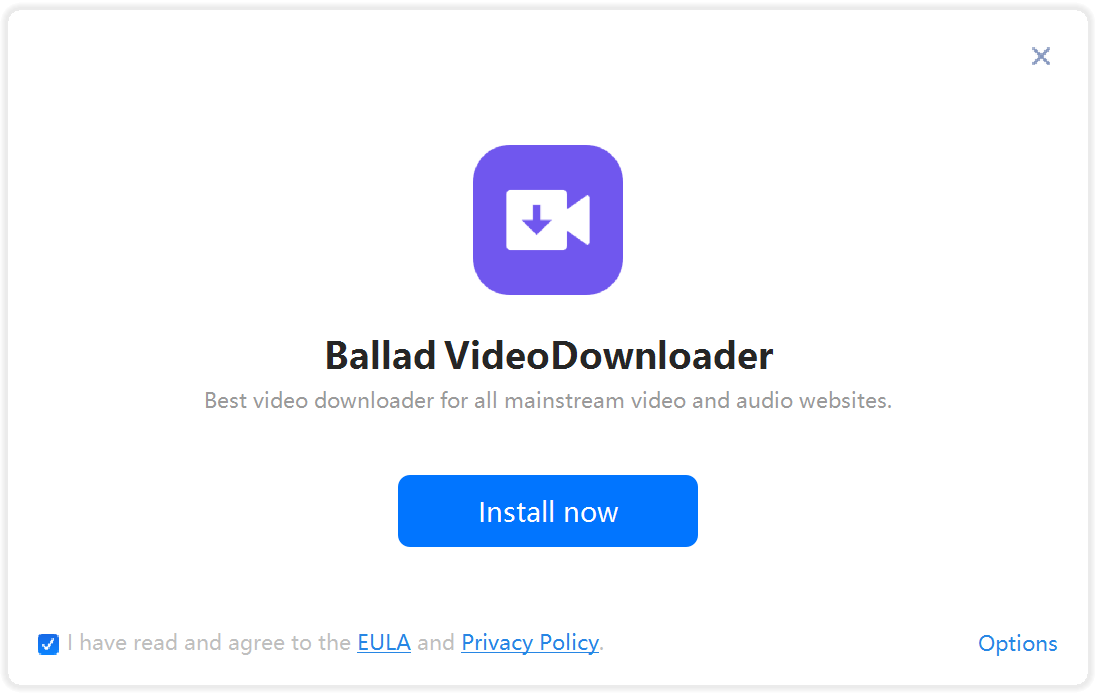
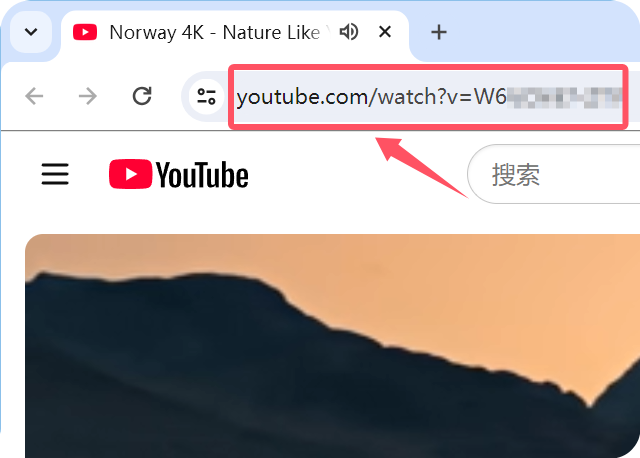
On YouTube, open the video and copy its URL.
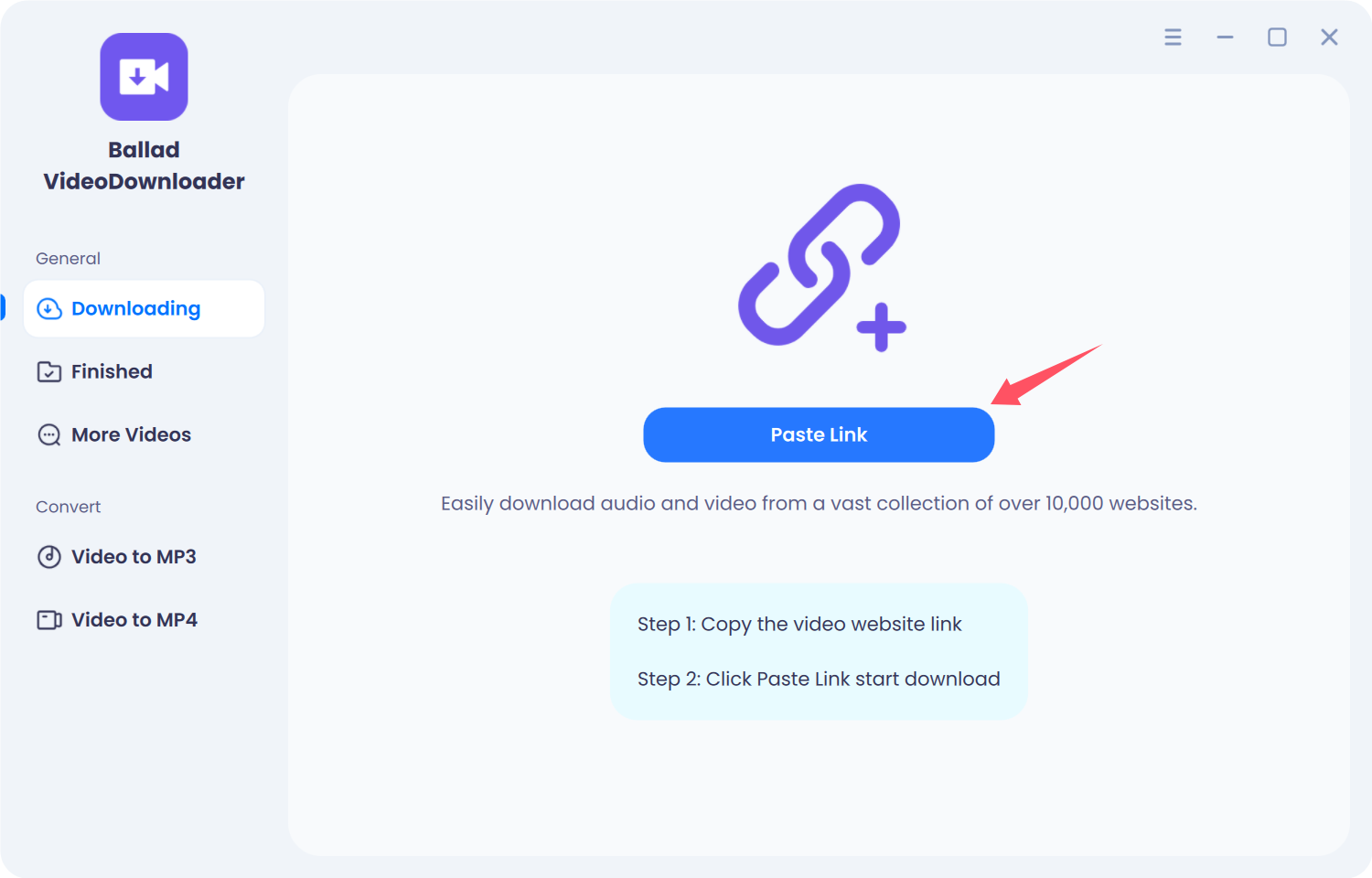
Paste the URL into Ballad VideoDownloader.
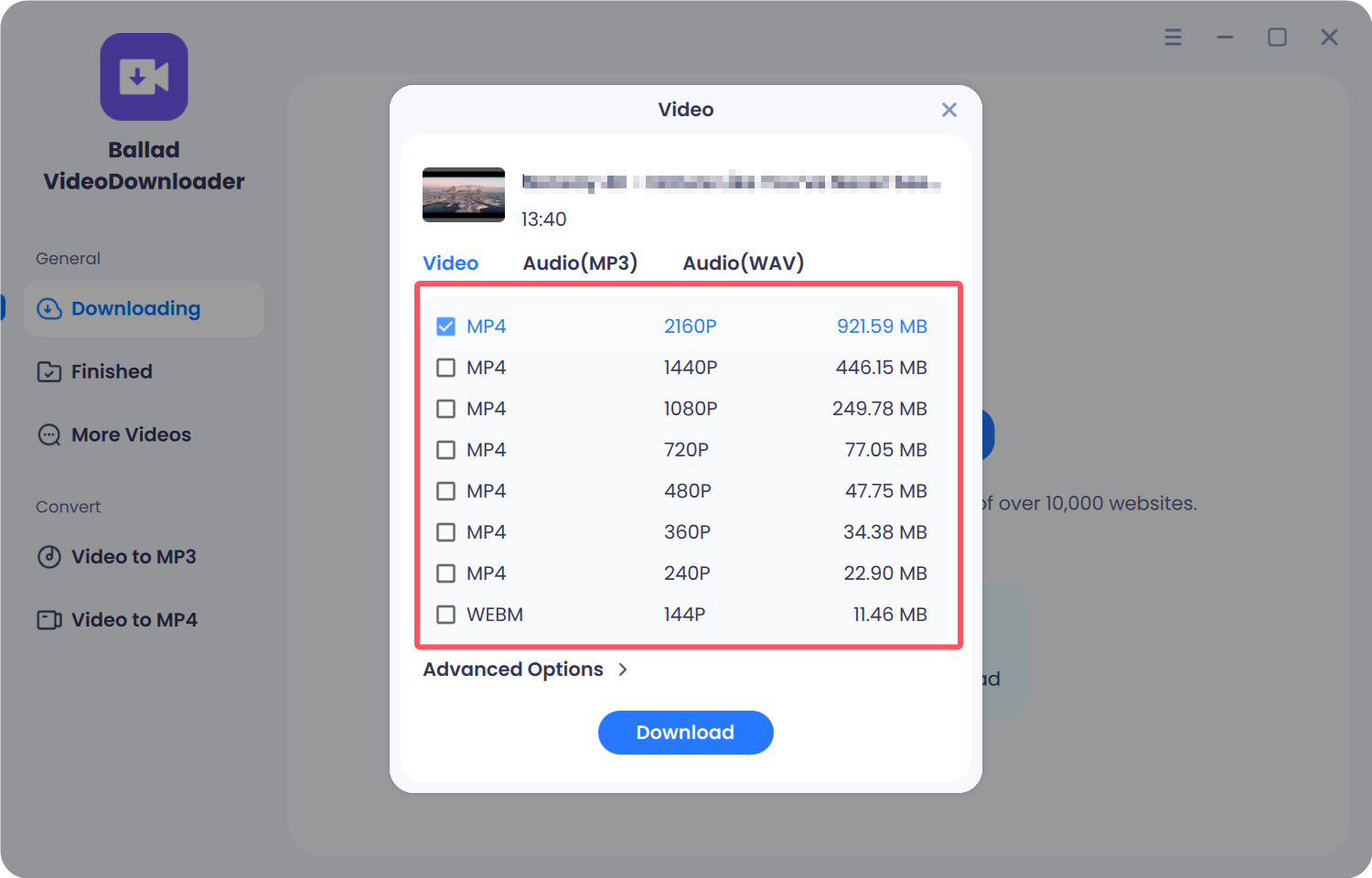
Choose MP4 for normal playback. Pick 1080p, 4K, or 8K only when that upload lists it. Quality choices are explained on the YouTube 4K / 8K page.
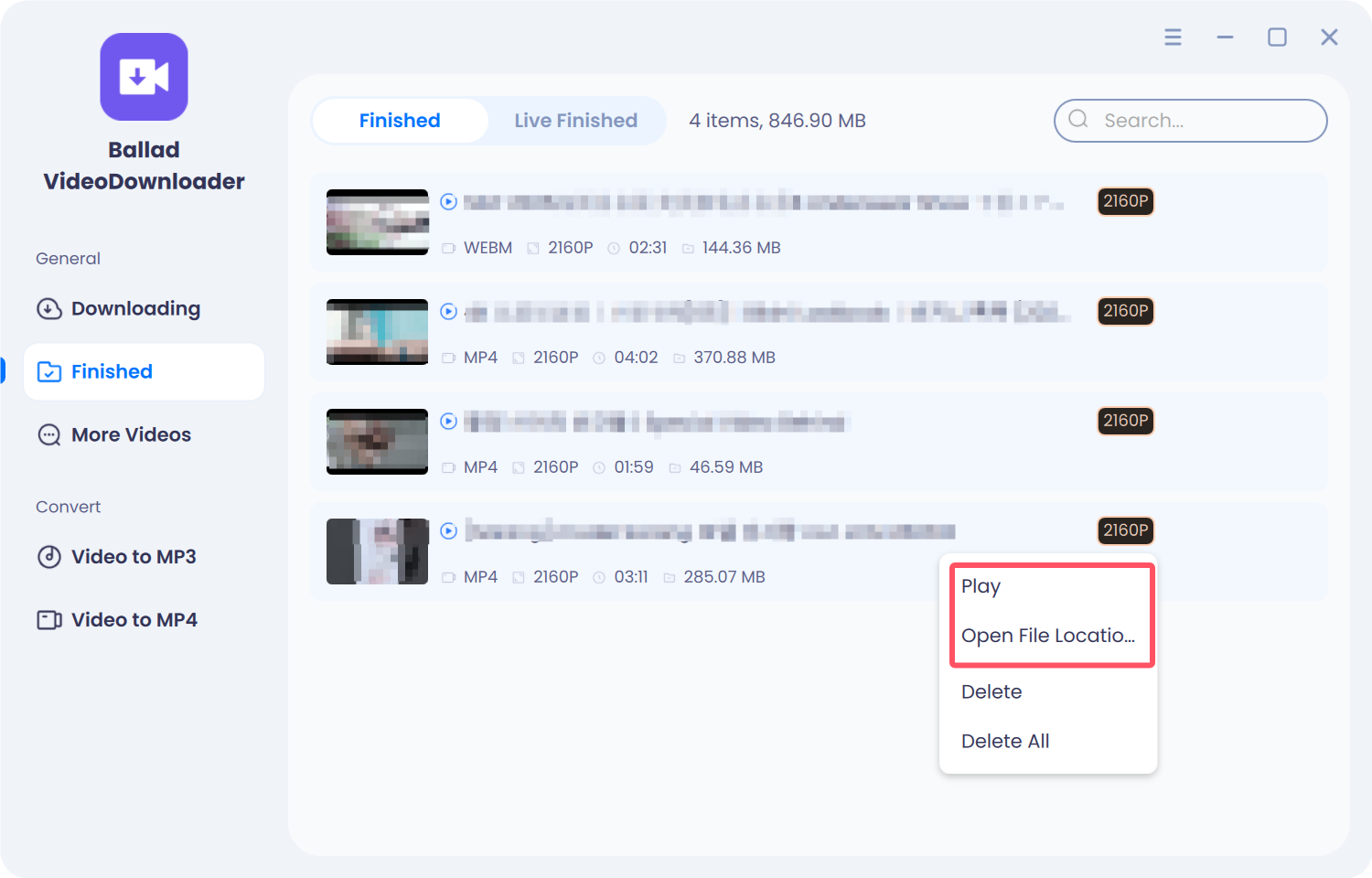
Start the download. When it finishes, double-click the item to play it, or right-click it and choose Play or Open file location.
Random browser extensions and unknown “free online YouTube downloaders” are a common source of ads, fake installers, and broken files. A desktop app with a clear installer is the more predictable way to save an allowed video.
Which path to use
| Goal | Use |
|---|---|
| Watch later inside YouTube, no file needed | YouTube Premium offline |
| Save a video you uploaded | YouTube Studio download |
| Save an allowed video as a file on a Windows PC | Ballad VideoDownloader |
| Audio only | YouTube to MP3 |
| A whole list | Download a YouTube playlist |
Quality notes
- The resolution list comes from the upload. A 1080p video cannot be saved as 4K.
- MP4 is the practical default for Windows players.
- Playlists and livestreams are separate jobs. Do not paste a playlist URL and expect this single-video flow to explain it. Use the playlist guide.
FAQ
Can I download any YouTube video to my PC?
No. Download videos you own, have permission to save, or that are otherwise lawful to keep. Ballad does not support bypassing DRM or site protections.
Does this save the video as a file?
Yes, when the link is supported and the download finishes. YouTube Premium offline is different: it stays inside the YouTube app.
Where are 4K and MP3?
4K and 8K only appear when YouTube provides them. See the 4K / 8K page. For audio, see YouTube to MP3.
Legal note
This guide is for personal, lawful use. Ballad is not affiliated with YouTube. Do not download copyrighted videos without permission, and do not redistribute saved files. Details: copyright FAQ.