
Audio Mirroring
4.1 Method 1: Audio Forwarding
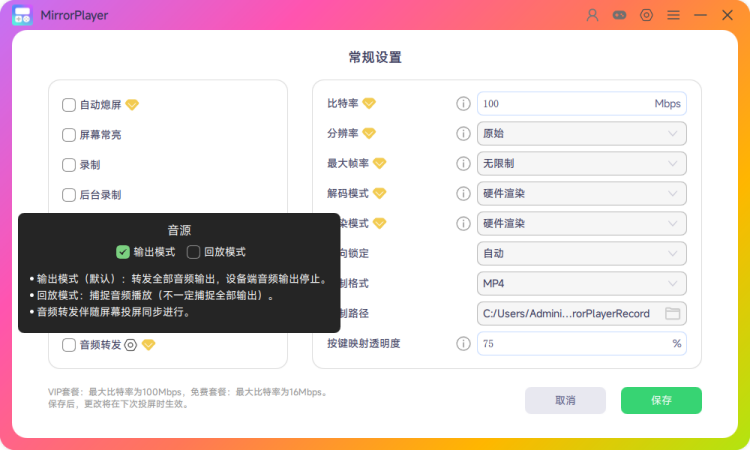
4.1.1 In MirrorPlayer Settings, at the bottom left, enable Audio Forwarding.
- Audio Forwarding requires no app install. It includes two modes: Output and Playback. See the descriptions in Settings for the differences.
4.2 Method 2: Audio Service
- Audio Service requires installing an app on the phone.
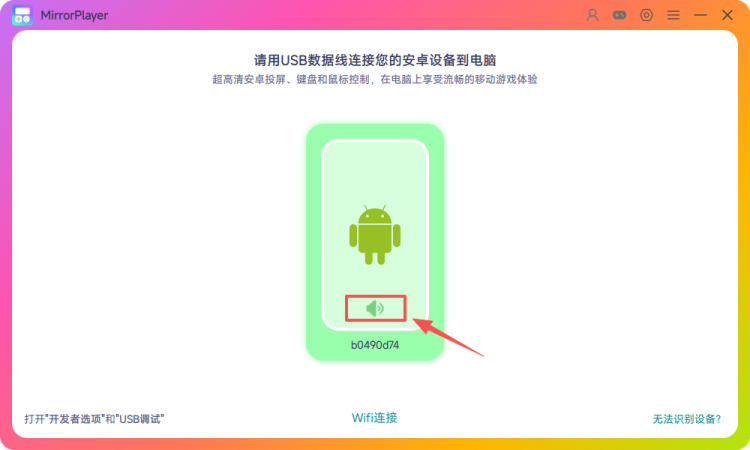
4.2.1 Click the speaker icon on the MirrorPlayer home screen.
4.2.2 Audio mirroring dialog
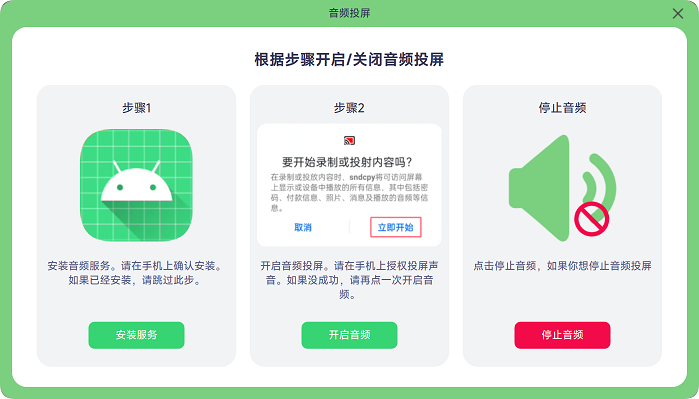
Note: Audio Service mirroring requires installing an APK on the phone to start the audio service.
Enable audio mirroring (Step 1): Click Install service, then confirm installation of the APK on the phone. (Skip if already installed.)
Enable audio mirroring (Step 2): Click Start audio, then grant audio capture permission on the phone. You should then hear phone audio on the PC. (If it still fails after granting permission, click Start audio again and authorize on the phone. Retry this step.)
Stop audio mirroring: Click Stop audio to end the audio mirroring service.